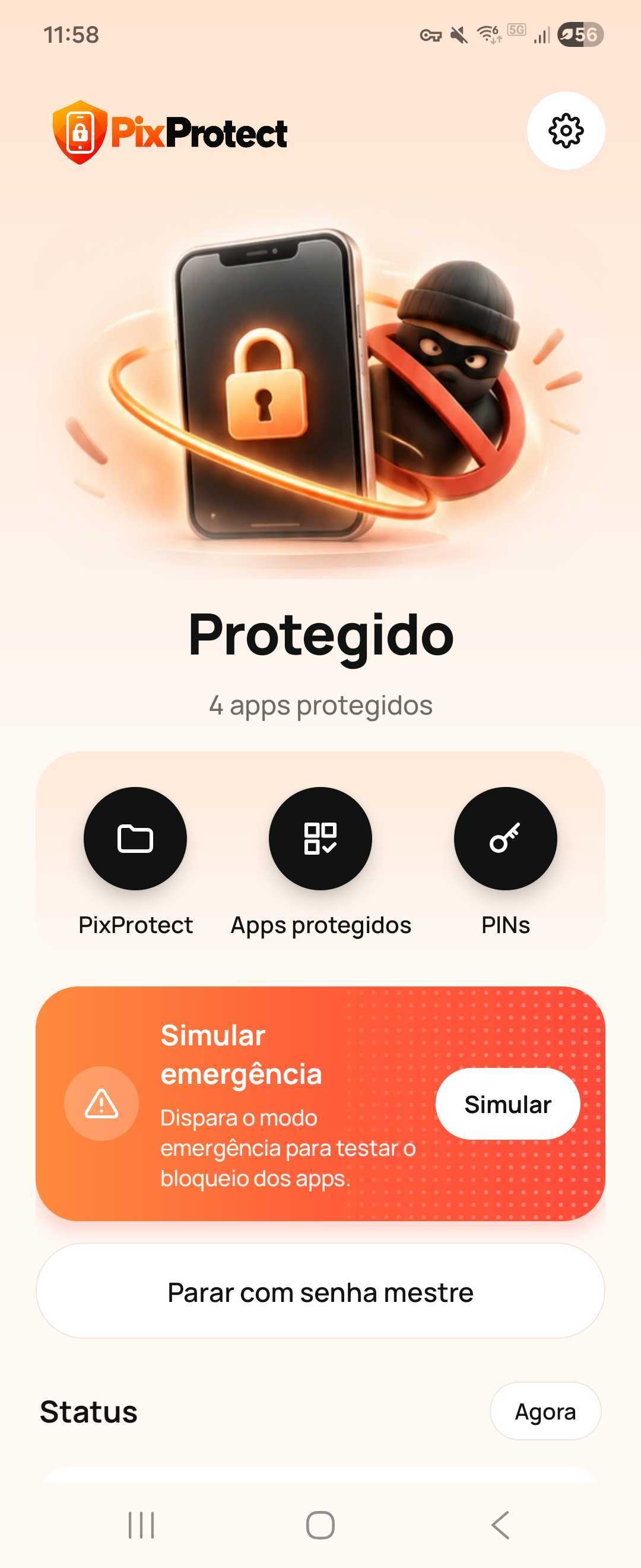
PixProtect has emergency options that can request the deletion of apps and data from the Work Profile.
Attention
These features can cause permanent data loss. Read carefully before turning them on.
Option 1 — Delete the data of the selected Work apps
The option Also delete the data of the selected Work apps makes PixProtect request the following when the emergency PIN is triggered:
- Clearing the data of the apps selected in the Work profile.
- Uninstalling those apps.
- Keeping the Work Profile, which will continue to exist.
This operation applies to the Work apps selected beforehand.
Option 2 — WIPE PIN
The WIPE PIN is a specific password to request the complete deletion of the Work Profile.
When used, the app requests the removal of the entire Work profile, including:
- Apps installed in the profile.
- Data stored in the profile.
- Accounts set up in the profile.
- Settings belonging to the profile.
How to set up the WIPE PIN
- On the PixProtect home screen, tap PINs.
- Select Create WIPE PIN.
- Confirm the operation using the master password.
- Register a WIPE PIN that is different from your other passwords.
- Go back to Settings.
- Turn on the option Enable WIPE PIN.
Important
The WIPE PIN must be different from the master password and the emergency PIN.
Attention
Do not use the WIPE PIN or data deletion to run tests.
These actions are irreversible when carried out successfully and can permanently remove apps, accounts and information stored in the Work Profile.